
Record the active Simulator
Attach to a booted iOS Simulator window and start or stop recording without leaving the capture workspace.
Grab video from iOS Simulator, trim it on a frame timeline, add device presentation, and export a polished clip from one focused Mac app.
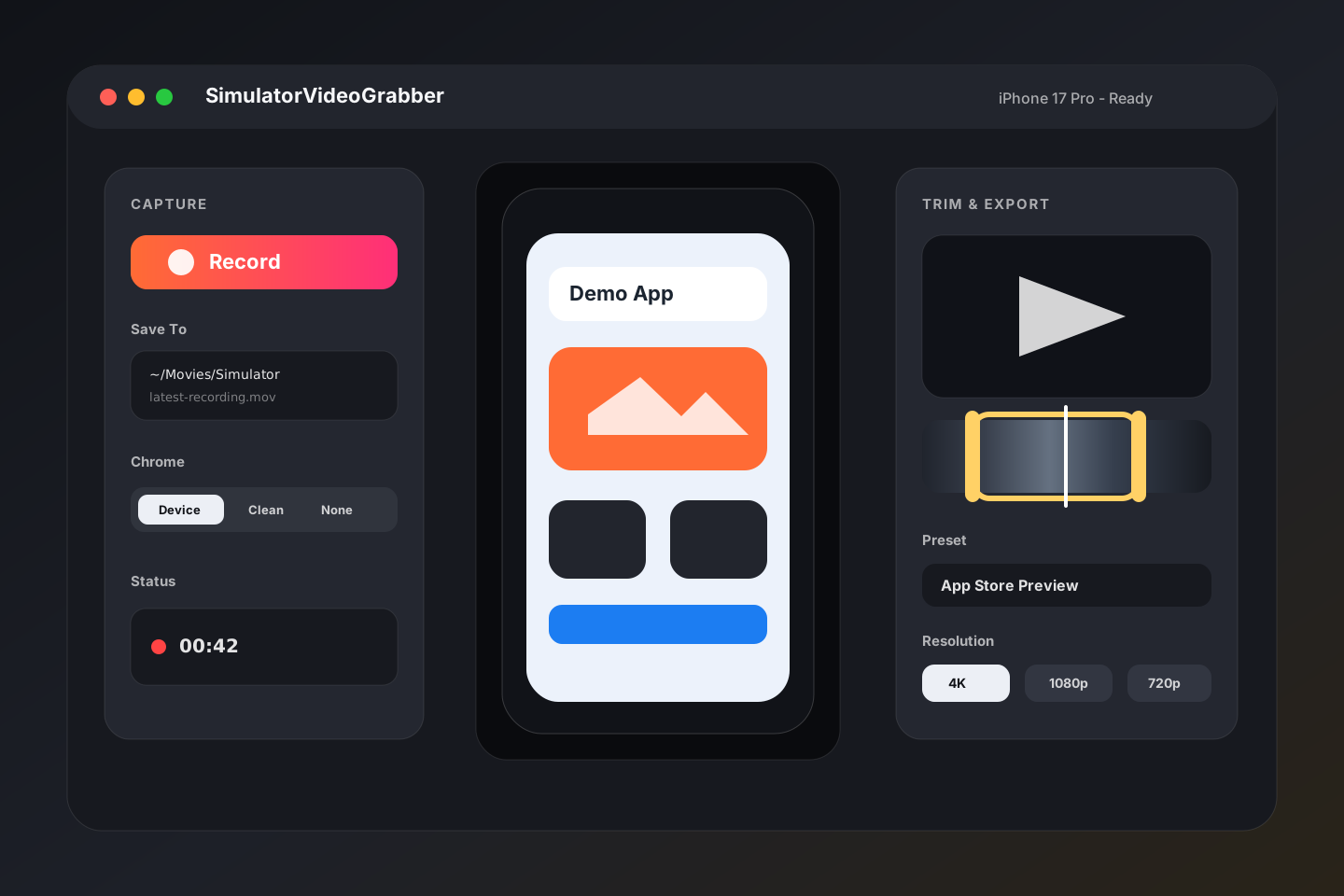
SimulatorVideoGrabber keeps the capture and edit loop tight. Record the UI state, trim the useful part, dress it for presentation, and reveal the export without switching between screen recorders and video editors.
Attach to a booted iOS Simulator window and start or stop recording without leaving the capture workspace.
Scrub the saved clip, drag in and out handles, and preview the exact segment before exporting.
Render clean videos with iPhone or iPad frames, background styles, frame finishes, and portrait or landscape canvases.
Choose original, 720p, 1080p, 1440p, or 4K exports for App Store previews, demos, docs, and launch posts.
Mix recorded audio with a background track, control volumes, loop music, and reveal the finished export.
Select output folders, reveal recordings, refresh devices, and keep the utility parked beside Simulator while you work.
Open the app state you want to capture and let SimulatorVideoGrabber detect it.
Capture directly from the active Simulator window into your selected output folder.
Use the timeline thumbnails and playhead to select the strongest part of the clip.
Choose resolution, orientation, background, device frame, audio, and export.

Use it for App Store previews, launch clips, bug demos, documentation videos, onboarding recordings, and investor updates where the Simulator output needs to look finished.